Enhanced Conversions in Google Ads helps improve the accuracy of your conversion tracking by securely sending hashed first-party customer data, such as email, phone number, or address, to Google.
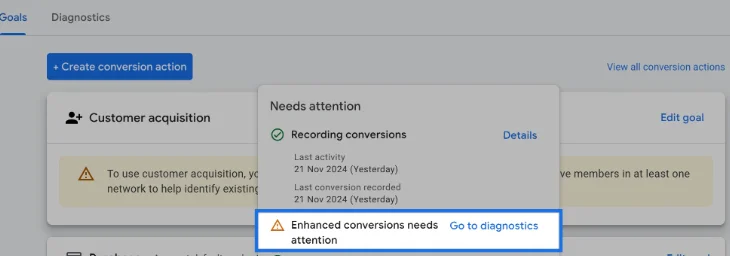
However, many advertisers come across a “Needs Attention” status while setting it up. This usually means something isn’t working properly, either the setup is incomplete, incorrectly configured, or valid user data isn’t being captured.
In this guide, you’ll learn what causes this issue and how to fix it step-by-step.
What Does “Needs Attention” Mean?
- Data is not being sent properly to Google
- Required user-provided data is missing or incorrect
- Tag configuration is incomplete
- Google Tag Manager or gtag setup is not firing correctly
Why the “Needs Attention” Alert Appears
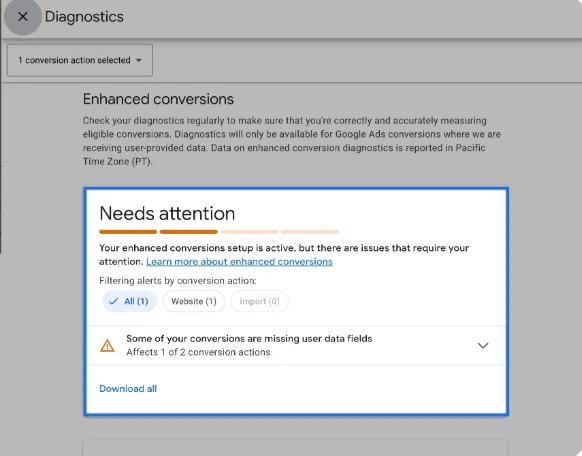
This alert appears when Google detects that your Enhanced Conversions setup is active, but not fully working as it should. The most common issue is:
Some of your conversions are missing important user data fields.
Common Causes of the Issue
1. Missing User Data Fields
Enhanced conversions rely on:
- Email address
- Phone number
- First name / Last name
- Address
If these are not captured or passed correctly, then tracking becomes incomplete.
2. Incorrect Tagging Setup
- Google Tag or GTM is not configured properly
- Conversion tag fires without user data
- Enhanced conversions toggle is enabled but not implemented
3. Data Encryption Issue
- Required when using manual setup
- Data must be hashed using SHA-256 before sending
- Incorrect formatting leads to rejection
4. Data Not Sent from Form
- Lead forms may not push data into the data layer
- GTM cannot capture values if not available
5. Tag Not Activated
- Trigger misconfigured
- Conversion event not aligned with form submission
- GTM preview shows missing variables
Steps to fix
Step 1: Verify Conversion Tracking Tag
- Open Google Tag Manager
- Check your Google Ads Conversion Tag
- Ensure:
- Conversion ID and Label are correct
- Tag fires on the correct trigger (form submit or thank-you page)
Step 2: Enable Enhanced Conversions Properly
- In Google Ads:
- Go to Conversions
- Select your conversion action
- Click Enhanced Conversions
- Choose:
- Google Tag Manager, or
- Google Tag (gtag.js)
Step 3: Pass User Data via Data Layer (GTM)
- Make sure form pushes user data like this:
dataLayer.push({
  event: "form_submit",
  email: "user@example.com",
  phone_number: "7782515274",
  first_name: "xyz",
  last_name: "abc"
});
Then:
- Create Data Layer Variables in GTM
- Map them inside the conversion tag
Step 4: Configure Enhanced Conversion Variables
- Inside your Google Ads Conversion Tag:
- Enable Enhanced Conversions
- Map fields:
- Email → {{DL - email}}
- Phone → {{DL - phone_number}}
Step 5: Use Automatic Variables (Recommended)
- Google Ads also allows automatic data collection, which simplifies setup.
- Use this when:
- Your website has multiple conversion actions
- You want to reduce manual errors
- Your forms are dynamic
- Benefits:
- Automatically detects available user data
- Sends data in the correct format
- Reduces implementation complexity
Step 6: Manual Variables (Using DOM / Data Layer)
- Manual variables let you explicitly define and send user data instead of relying on automatic detection.
- Use this when:
- You have custom or complex form structures
- Automatic tracking is not working properly
- You need full control over data mapping
- Benefits:
- Full control over data collection
- Works for custom websites
- Flexible implementation
Step 7: In-Code Setup (gtag.js Method)
- This method directly sends Enhanced Conversion data through website code.
- Use this when:
- You are not using Google Tag Manager
- You have direct access to website code
- You want lightweight implementation
- Benefits:
- Direct implementation
- No GTM dependency
- Faster execution
Step 8: Test Using GTM Preview Mode
- Open GTM Preview
- Submit your form
- Verify:
- Tag is firing
- Variables are populated correctly
- No “undefined” values
Step 9: Validate in Google Ads Diagnostics
- After implementation:
- Wait 24–48 hours
- Go to Enhanced Conversions Diagnostics
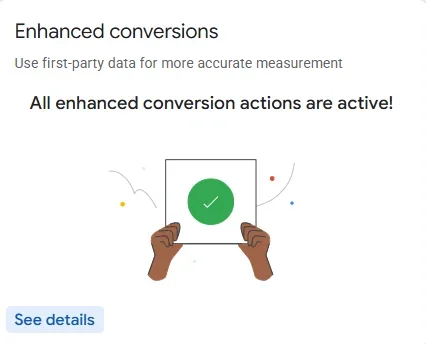
- Check status

Webomindapps is a profound enterprise serving successfully since 2013. Based in Bangalore, it offers expert solutions in web designing & development, e-commerce, mobile & web app development, digital marketing, and SEO across the globe.
Quick Links
Contact Info
4th Floor, 5 80 Feet Rd, KHB Colony, 7th Block, Koramangala, Bengaluru Karnataka 560095
+91 9353-370-081 +91 8088-749-165





 ©
. All Rights Reserved by Webomindapps Pvt. Ltd
©
. All Rights Reserved by Webomindapps Pvt. Ltd